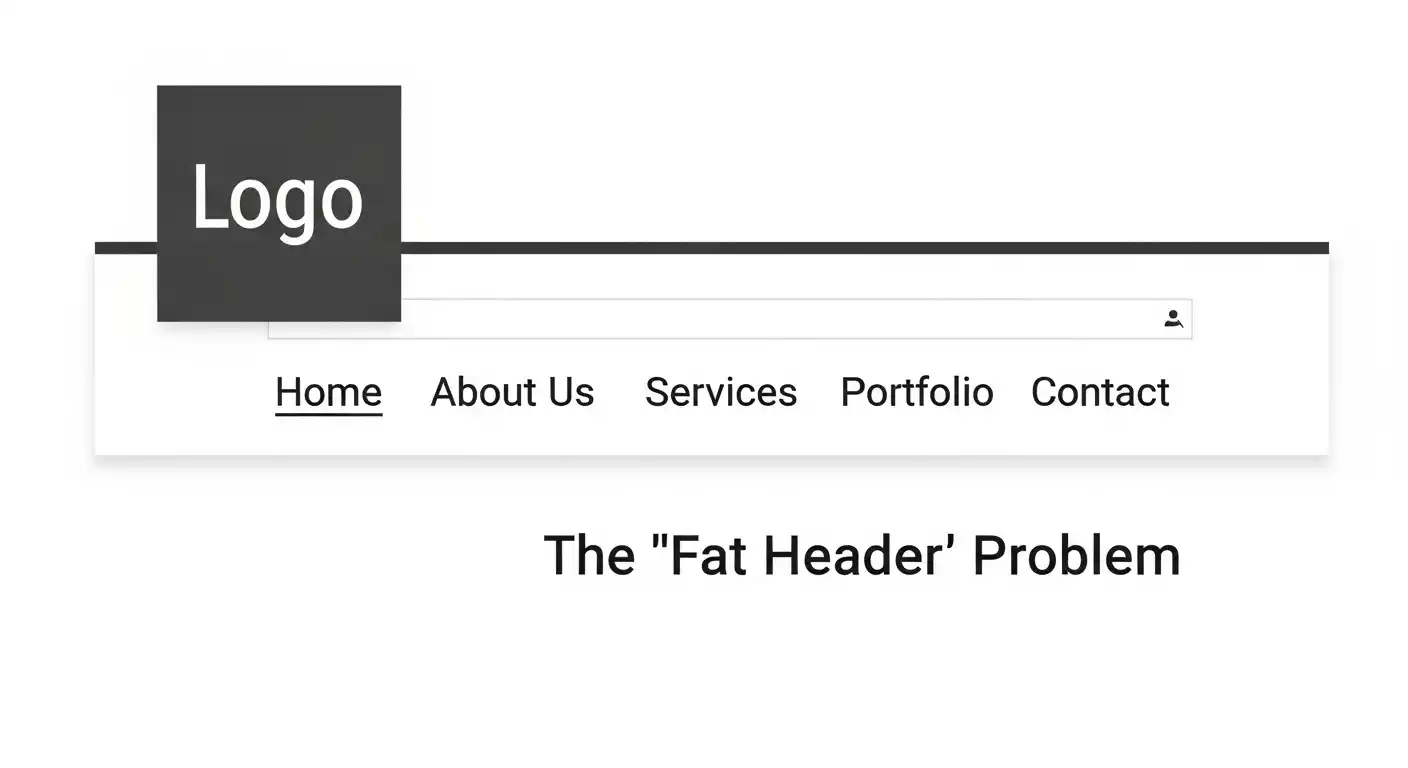

The Scenario: You just generated a beautiful logo in Midjourney or LogoAI. It looks perfect on Instagram. The Problem: You uploaded it to your website (WordPress/Shopify), and it looks terrible.
Because AI generates Square (1:1) images, your website header has to expand to fit the square. This creates a massive, clumsy navigation bar that pushes your content down.
Most people try to fix this by:
- Cropping: Which cuts off the top/bottom of your icon.
- Stretching: Which makes your logo look like it was run over by a truck.
The correct solution is a new AI technique called Outpainting (or “Uncropping”).
What is Outpainting?
Outpainting is the opposite of cropping. Instead of removing pixels, you ask the AI to invent new pixels outside the frame.
It analyzes the texture, color, and lighting of your square logo and “hallucinates” a wider background that matches perfectly.
How to Fix Your Logo (Free Workflow)
You don’t need Photoshop to do this. You can use free tools like Clipdrop (Uncrop) or Canva (Magic Expand).
Step 1: Analyze Your Logo
This works best if your logo has a texture or illustration in the background. (If your logo is just an icon on a solid white background, you don’t need this—just make the canvas wider in Paint).
Step 2: Upload to an Uncropper
- Go to a tool like Clipdrop Uncrop.
- Upload your square logo.
- Drag the “handles” of the frame to the left and right until the canvas looks like a Rectangle.
Step 3: Prompt the “Void”
The tool will ask what should go in the empty space.
- Do not describe your logo.
- Do describe the background.
- Bad Prompt: “A coffee shop logo.” (It will draw a second logo).
- Good Prompt: “Dark wood texture, blurred coffee beans, minimalist shading.”
Step 4: Download & Resize
The AI will generate 4 variations. Pick the one where the seam is invisible. Download it and—this is important—resize it.
- AI Outpainting creates huge files (e.g., 2000px wide).
- For a website header, resize it to 1200px width and compress it to WebP format so it loads fast.
Conclusion
A “floating square” logo is the #1 sign of a DIY website. By taking 2 minutes to “Outpaint” your design into a wide banner, you trick visitors into thinking you paid a pro agency for a custom responsive brand kit.
Now that your header is fixed, what about your mobile icon? Check out our guide on Why AI Favicons Look Blurry to solve the opposite problem.





Leave a Comment